

© 2023 - 2025 by PNPC. All righs reserved.
Telehealth Visit Guide

At Pacific Noble Primary Care, we offer secure HIPAA-compliant virtual visits for established patients through our Elation Integrated Video, powered by Zoom. To help ensure a quality appointment experience, please review the steps below to easily join your next Telehealth visit.
Note: Telehealth visits may not be appropriate for all health or wellness needs or may not be covered by all insurance plans. If your appointment requires an in-person visit or evaluation, or if coverage limitations apply, our team will contact you to assist with rescheduling an in-person visit.
Before Your Appointment
After scheduling confirm your appointment through one of the below options:
-
Select confirm through an automated reminder sent to your preferred contact method (i.e., text, phone, or email).
-
Answer and confirm when receiving a courtesy confirmation call directly from our office.
-
Reply directly to a confirmation text sent by our team.
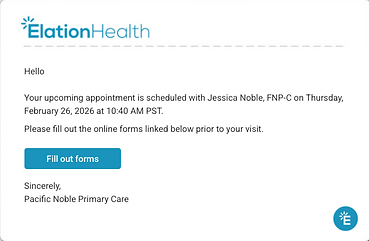
Next, complete all required e-forms. A secure link to access required e-forms are automatically sent to your email immediately after your appointment is created.
Last, make sure you have a device with a camera, mic, and internet connection to join your upcoming virtual appointment.
-
Smartphone
-
Tablet
-
Laptop or desktop computer
Note: If you don't have the Zoom app installed, you can download it from app stores or on laptop/desktop computers, often providing a high quality virtual call experience compared to joining from a web browser.
How to Join Your Visit
-
At the time of your appointment, click the 'zoom.us' link sent via SMS text message or email.
-
Click 'Launch Video' to automatically join and enter the virtual waiting room.
-
Make sure to enter your name and grant access to your camera and microphone so that your care team and provider knows you've entered the waiting room and can see and hear you when joining your Telehealth appointment.
You should receive your virtual visit instructions, including a zoom.us link to join through automated appointment reminders. To join simply click on the link provided to be placed in the virtual waiting room.


During Your Visit
After you've entered the waiting area, a care team member will admit you into the virtual exam room when ready.
Afterwards, they will:
-
Review the reason for your visit
-
Collect any stated home vitals (weight, blood pressure, temperature, etc.)
-
Update any medications, allergies, or recent hospital/procedural visits
After gathering and updating information in your chart, they may briefly place you back in the virtual waiting room while notifying your provider that you are ready. Your provider, when ready will then join to perform your virtual visit.